Use AI Agents in Your Favorite Editor through the Agent Client Protocol
Written by
Graham Neubig
Published on
Developers are creatures of habit. We each have our favorite code editor, carefully configured with our preferred keybindings, color schemes, and plugins. Some of us swear by Zed's speed, others by JetBrains' powerful refactoring tools, and still others can't imagine leaving neovim.
But when it comes to AI coding assistants, we've often had to adapt to whatever interface each agent provides—whether that's a web UI, a separate CLI window, or a built-in experience limited to a specific editor. What if you could use any AI agent in any editor?
That's the promise of the Agent Client Protocol (ACP), and today we're going to show you how to bring OpenHands directly into your favorite editor.
What is the Agent Client Protocol?
The Agent Client Protocol (ACP) is a standardized communication protocol that enables code editors to interact with AI coding agents. Think of it as the Language Server Protocol (LSP), but for AI agents instead of language servers.
Before LSP, each editor needed custom integrations for every language's tooling—code completion, go-to-definition, refactoring, and more. LSP changed that by creating a universal protocol that let any editor communicate with any language server. This meant that language tooling developers could write their server once and have it work across all editors that supported LSP.
ACP does the same thing for AI coding agents. Instead of each agent needing to build custom integrations for every editor, and each editor needing custom support for every agent, ACP provides a standardized JSON-RPC interface. Agents that implement ACP work with any compatible editor. Editors that support ACP gain access to the entire ecosystem of ACP-compatible agents.
The protocol assumes that users are primarily working in their editor and want to invoke AI agents for specific tasks without context-switching. Agents run as sub-processes of the code editor and communicate using JSON-RPC over stdio, making integration seamless and lightweight.
Which Editors Support ACP?
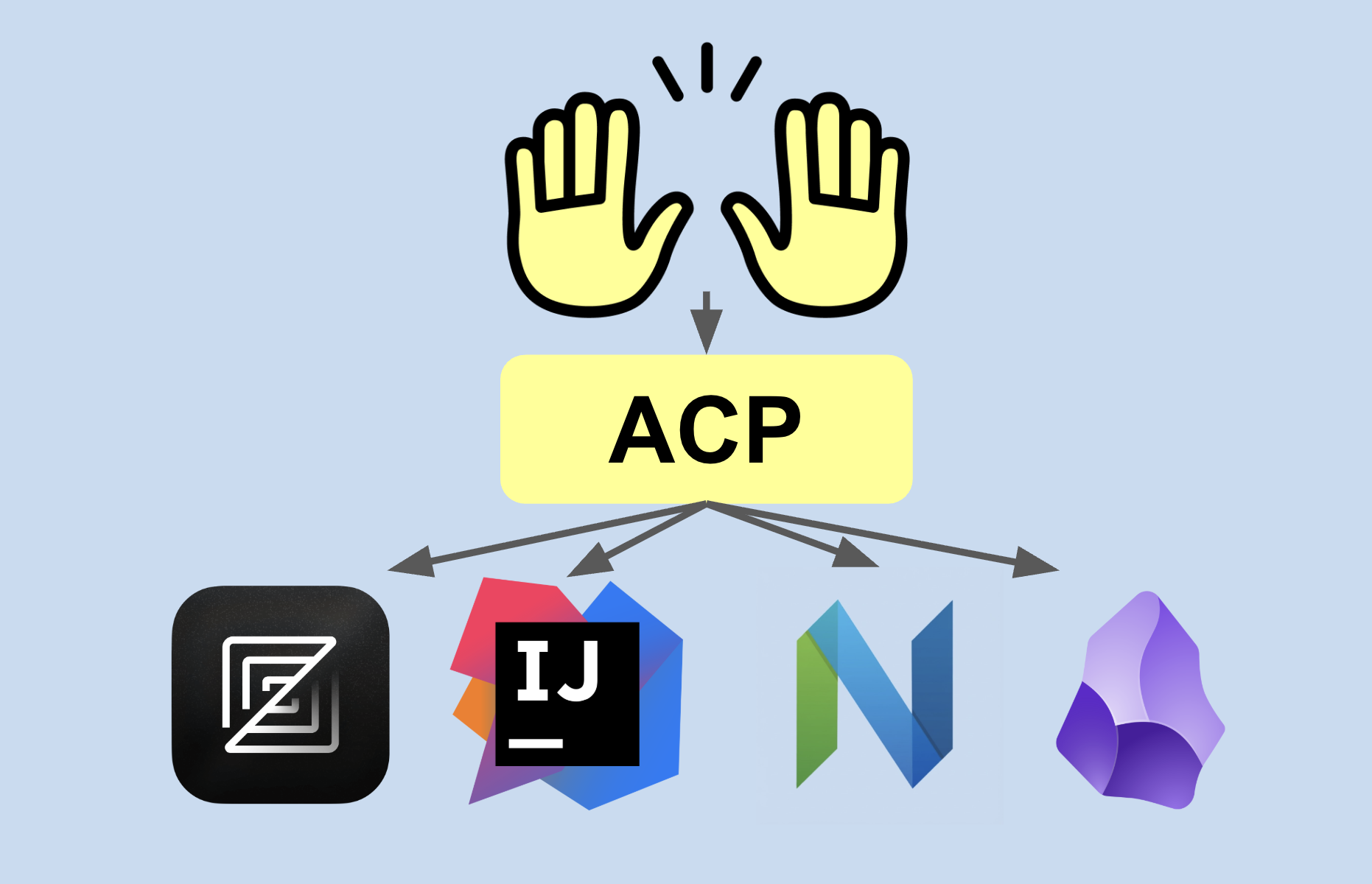
The ACP ecosystem is growing rapidly, with several major editors already implementing support:
-
Zed: The fast, collaborative code editor was one of the first to implement ACP support, making it easy to integrate any ACP-compatible agent.
-
JetBrains IDEs: JetBrains has joined as a co-developer of the ACP protocol and plans to bring support to their entire editor lineup, including IntelliJ IDEA, PyCharm, WebStorm, and more.
-
Neovim: Through community plugins like CodeCompanion.nvim, neovim users can now leverage ACP to bring AI agents into their workflow.
-
Obsidian: The knowledge management and note-taking app Obsidian supports ACP, enabling AI-assisted writing and content generation workflows.
You can find the full list of ACP-compatible clients and agents at agentclientprotocol.com/overview/clients.
Configuring ACP for OpenHands
OpenHands provides built-in support for ACP through the OpenHands CLI. The configuration is straightforward, but let's break down what you need to know.
ACP Configuration Format
ACP agents are configured using a JSON object that specifies how the editor should launch and communicate with the agent. The basic structure looks like this:
{
  "agent_servers": {
      "AgentName": {
          "command": "executable",
            "args": ["arg1", "arg2"],
            "env": {
              "ENV_VAR": "value"
            }
        }
    }
}
For OpenHands specifically, after you install the OpenHands CLI, you can use the following configuration:
{
  "agent_servers": {
      "OpenHands": {
          "command": "openhands",
            "args": [
              "acp"
            ],
            "env": {}
        }
    }
}
For more details on ACP configuration and troubleshooting, check out the OpenHands ACP documentation.
Setting Up OpenHands in Zed
Let's walk through setting up OpenHands in Zed, an open source editor with robust ACP support.
Prerequisites
Before you begin, make sure you've configured your OpenHands settings. You'll need an API key for your preferred LLM provider. You can set this up by running:
openhands
Follow the prompts to configure your LLM provider, API key, and other settings.
Adding OpenHands to Zed
-
Open the command palette in Zed by pressing
Cmd+Shift+Pon macOS orCtrl+Shift+Pon Linux/Windows. -
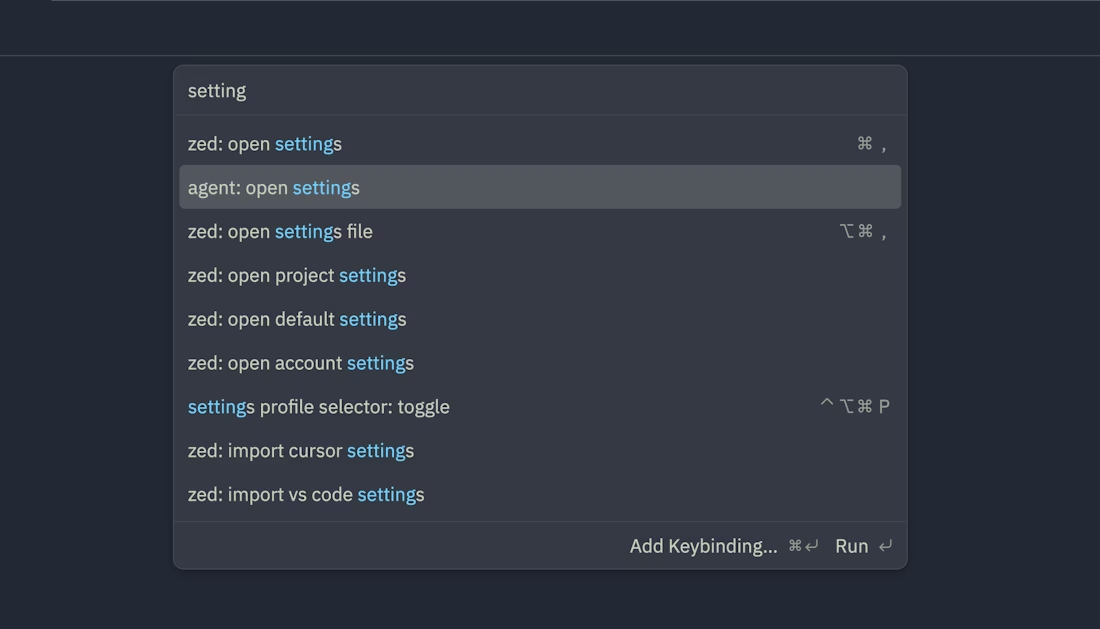
Search for "agent: open settings" and select it. This will open Zed's agent configuration settings.
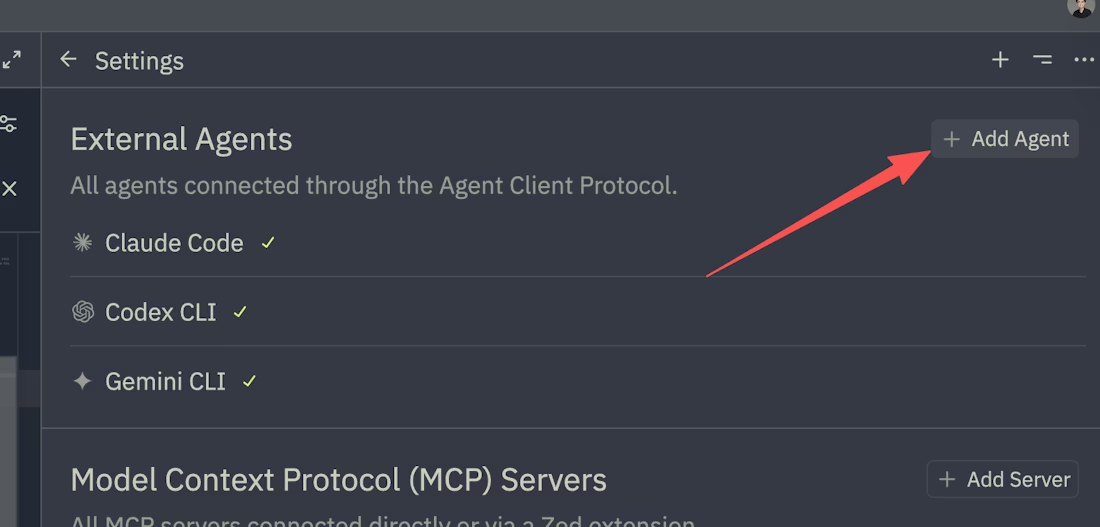
- Click "+ Add Agent" at the bottom of the settings panel, then select "Add Custom Agent".
- Add the OpenHands configuration to the
"agent_servers"section:
{
  "agent_servers": {
      "OpenHands": {
          "command": "openhands",
            "args": [
              "acp"
            ],
            "env": {}
        }
    }
}
- Save the settings and close the panel.
Now you can invoke OpenHands directly from Zed! Select some code or place your cursor where you want the agent to work, open the command palette, and type "agent" to see the available agent commands. Choose "OpenHands" from the list, and the agent will start working right in your editor.
Get Started Today
If you're ready to try OpenHands in your editor, head over to the ACP documentation for detailed setup instructions for your editor of choice.
And if you're interested in how OpenHands works under the hood, check out our GitHub repository or join our Slack community to chat with the team and other developers using OpenHands in their daily workflows.



Get useful insights in our blog
Insights and updates from the OpenHands team
Sign up for our newsletter for updates, events, and community insights.
OpenHands is the foundation for secure, transparent, model-agnostic coding agents - empowering every software team to build faster with full control.



